 Devly
Favicons are one of those jobs that should take thirty seconds and somehow take twenty minutes. You need a favicon.ico for older browsers, PNGs for modern ones, an Apple touch icon for iPhones, two Android sizes, a site.webmanifest, and the right <link> tags in your head. Most people end up on a favicon generator website, upload their logo, download a zip, and hope it got everything right.
Devly 2.3 adds a Favicon Converter that does the whole set locally. Drop in one PNG and you get every file a modern website expects.
What a website actually needs in 2026
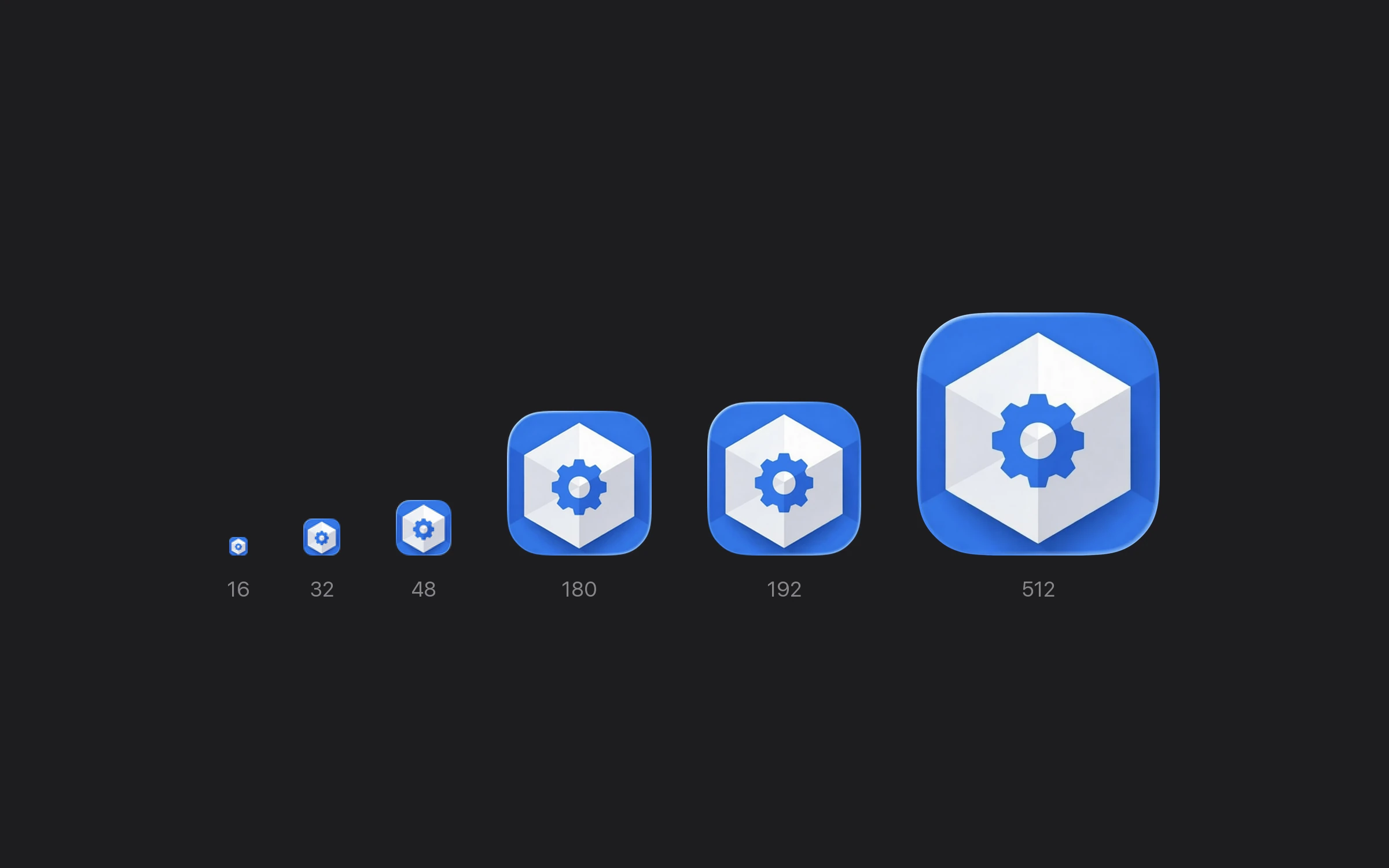
The list has settled down. Browsers look for /favicon.ico first, so it should hold a few small sizes in one file. Modern browsers prefer PNGs at 16 and 32 pixels. iOS uses a 180 × 180 apple-touch-icon.png when someone adds your site to their home screen. Android and installable web apps read a manifest that points at 192 and 512 pixel icons.
Getting one of those wrong rarely breaks anything visibly, which is exactly why it goes unnoticed: a blurry tab icon, a screenshot instead of a logo on an iPhone home screen, or a missing icon when someone installs your web app.
- favicon.ico with 16, 32 and 48 pixel images by default. You can also include 24, 64, 128 or 256.
- favicon-16x16.png and favicon-32x32.png for modern browsers.
- apple-touch-icon.png at 180 × 180 for iPhone and iPad home screens.
- android-chrome-192x192.png and 512x512.png for Android and installable web apps.
- site.webmanifest already pointing at the Android icons.
- The HTML tags ready to paste into your page's head.
Why do it on your Mac
A logo for a product that hasn't launched yet is exactly the kind of file you shouldn't be uploading to a random website. Favicon Converter runs entirely on your Mac. The PNG never leaves it, and the files go wherever you save them with the standard macOS save panel.
It's also faster. There's no upload, no queue and no zip to unpack. You pick a PNG, check the preview, and save.
How to make a favicon set with Devly
- Press ⌃⌥⌘D to open Devly, then ⌘P and type "favicon".
- Drop a PNG onto Favicon Converter, or paste one. 512 × 512 or larger gives the sharpest results, and a non-square image is centred on a transparent background.
- Pick which sizes go into
favicon.ico, or keep the defaults. Leave "Include web app icons" on for the Apple touch icon, Android icons and manifest. - Choose Export All to Folder… and pick your site's public folder.
- Choose Copy HTML and paste the tags into your page's head.
The tags it gives you look like this:
<link rel="icon" href="/favicon.ico" sizes="any">
<link rel="icon" type="image/png" sizes="32x32" href="/favicon-32x32.png">
<link rel="icon" type="image/png" sizes="16x16" href="/favicon-16x16.png">
<link rel="apple-touch-icon" sizes="180x180" href="/apple-touch-icon.png">
<link rel="manifest" href="/site.webmanifest">
Tips for a favicon that reads well at 16 pixels
At 16 pixels, detail disappears. Thin strokes vanish and text becomes a smudge. The icons that hold up are simple shapes with strong contrast. If your logo has a wordmark, try just the symbol. Check the 16 pixel preview in Favicon Converter before you save, because that's the size people see most, in every browser tab.
Favicon Converter sits in Devly's Graphics section next to Tailwind Colors, Color Palettes, the SVG Editor and the Screen Color Picker, so the rest of your front-end chores are one shortcut away.