 Devly
Search for a QR code generator and the top results often have a catch. Some encode a redirect through their own domain so they can count scans, and some stop working unless you pay. You print a code on a poster and later find out it points at someone else's server.
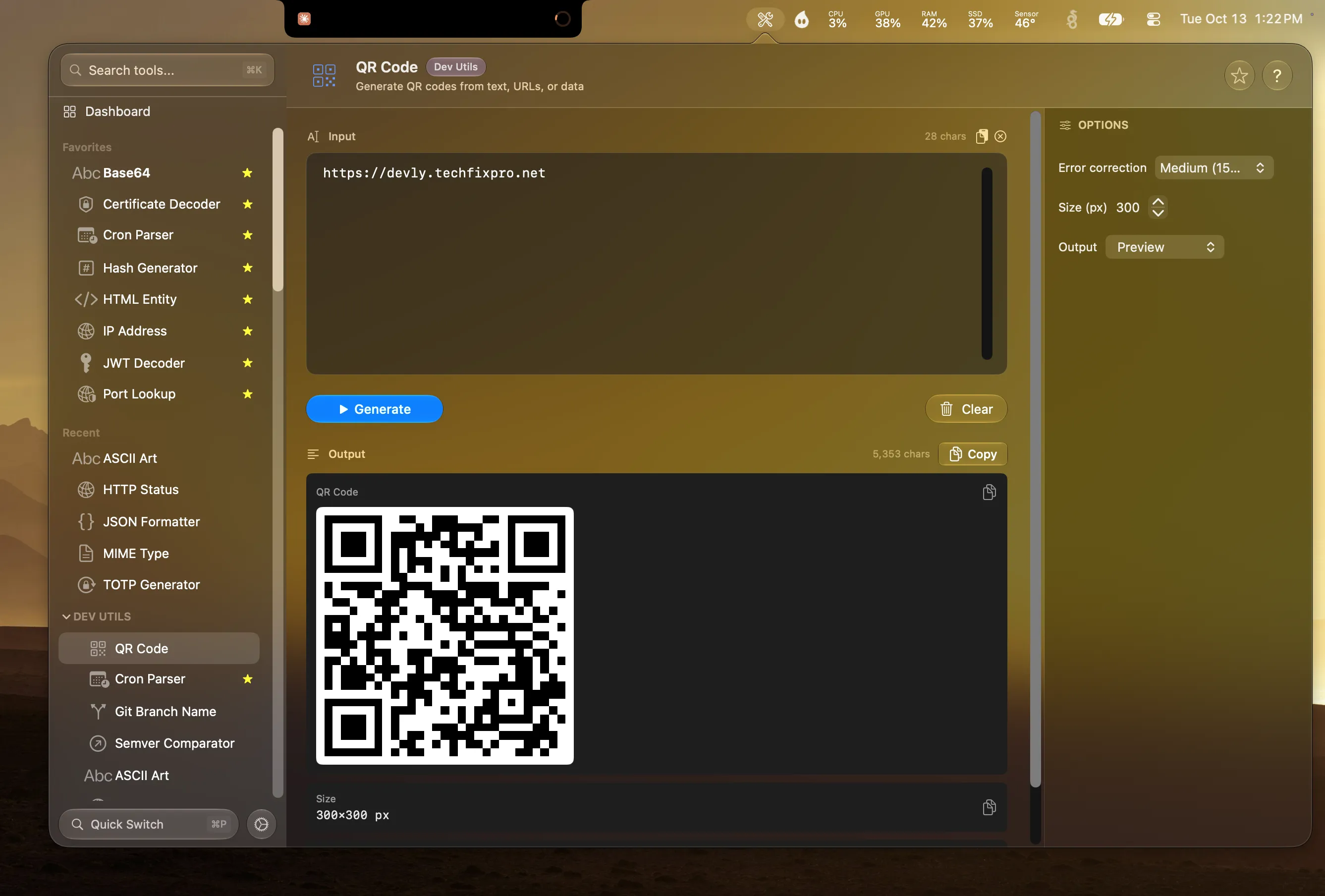
Devly's QR Code tool makes a static QR code that contains exactly the text you typed. No redirect, no tracking, no expiry. It's generated on your Mac with Apple's own Core Image QR generator, so it works offline.
What you can control
- Any text, a URL, a Wi-Fi string, a phone number or plain text.
- Error correction: Low (7%), Medium (15%), Quartile (25%) or High (30%).
- Size from 100 to 1,000 pixels, 300 by default.
- Output as a preview image, a Base64 PNG, or a data URL ready for an
<img>tag.
Which error correction to pick
Error correction is how much of the code can be damaged or covered while it still scans. Medium (15%) is the right choice for screens and most print. Go up to Quartile or High if the code will be printed small, on a curved surface, or anywhere it might get scuffed, or if you plan to put a logo over the middle. Higher correction makes the pattern denser, so keep the code large enough to scan comfortably.
Making a QR code with Devly
- Press ⌃⌥⌘D, then ⌘P and type "qr".
- Paste the URL or text.
- Pick an error correction level and size.
- Press Generate, then copy the result.
If you're building a page, choose Data URL output and paste the result straight into an <img src>. If you're writing docs, the Base64 PNG output drops into Markdown or a JSON fixture.
From the terminal and from Droppy
The same tool is in the command line: devly qrcode "https://example.com". And if you use Droppy, the Devly widget shows the QR code as an image on the notch shelf that you can drag straight into Slack, Mail or a design file.