You are looking at a log file and you see 1711094400. What date is that? You can do rough mental math, but the exact date requires more steps than it should. Or you are debugging an API response where the created_at field is a Unix timestamp in milliseconds. Or you are checking whether a JWT has expired by looking at its exp claim, which is also an epoch value. Timestamps in Unix epoch format are everywhere in development, and mentally converting them is tedious every single time.
The timestamp converter in Devly eliminates that tedium. Paste the epoch value, get the human-readable date immediately. No web search, no REPL, no mental arithmetic.
Where Unix timestamps show up in everyday development
Once you start looking, they are everywhere:
- Database records with
created_atandupdated_atstored as integer timestamps. Older schemas, especially those designed before ISO 8601 became standard, often used Unix timestamps throughout. - API responses with expiry times. OAuth token responses include
expires_inas seconds. Rate limit headers include reset times as Unix timestamps. - Log entries with millisecond precision timestamps. Structured logging formats often use epoch milliseconds because they sort correctly as integers.
- JWTs with
iat(issued at) andexp(expiry) claims. Both are Unix timestamps in seconds. - Scheduled jobs with
next_runtimestamps stored as epoch values in a jobs table or queue. - Cache expiry values set as absolute timestamps rather than TTLs.
Anywhere you need a compact, timezone-agnostic way to represent a moment in time, you will find Unix timestamps. They are simple, sortable, and language-agnostic. That makes them ubiquitous, and that makes being able to read them quickly a genuine productivity factor.
The friction of doing this conversion manually
You can do the math in your head for approximate times. A timestamp around 1.7 billion is somewhere in 2023 or 2024. A timestamp in the 1.5 billion range is around 2017. But exact conversion requires knowing the epoch origin (January 1, 1970 UTC), accounting for whether the timestamp is in seconds or milliseconds, handling timezone offsets correctly so you know what your local time is, and then formatting the output in whatever way is useful for the current task.
That is four distinct mental operations for something that should be a one-second lookup. And you will do it again an hour later with a different timestamp. The right answer is a tool that does it instantly, not a skill you develop through repetition.
How Devly converts Unix timestamps on Mac
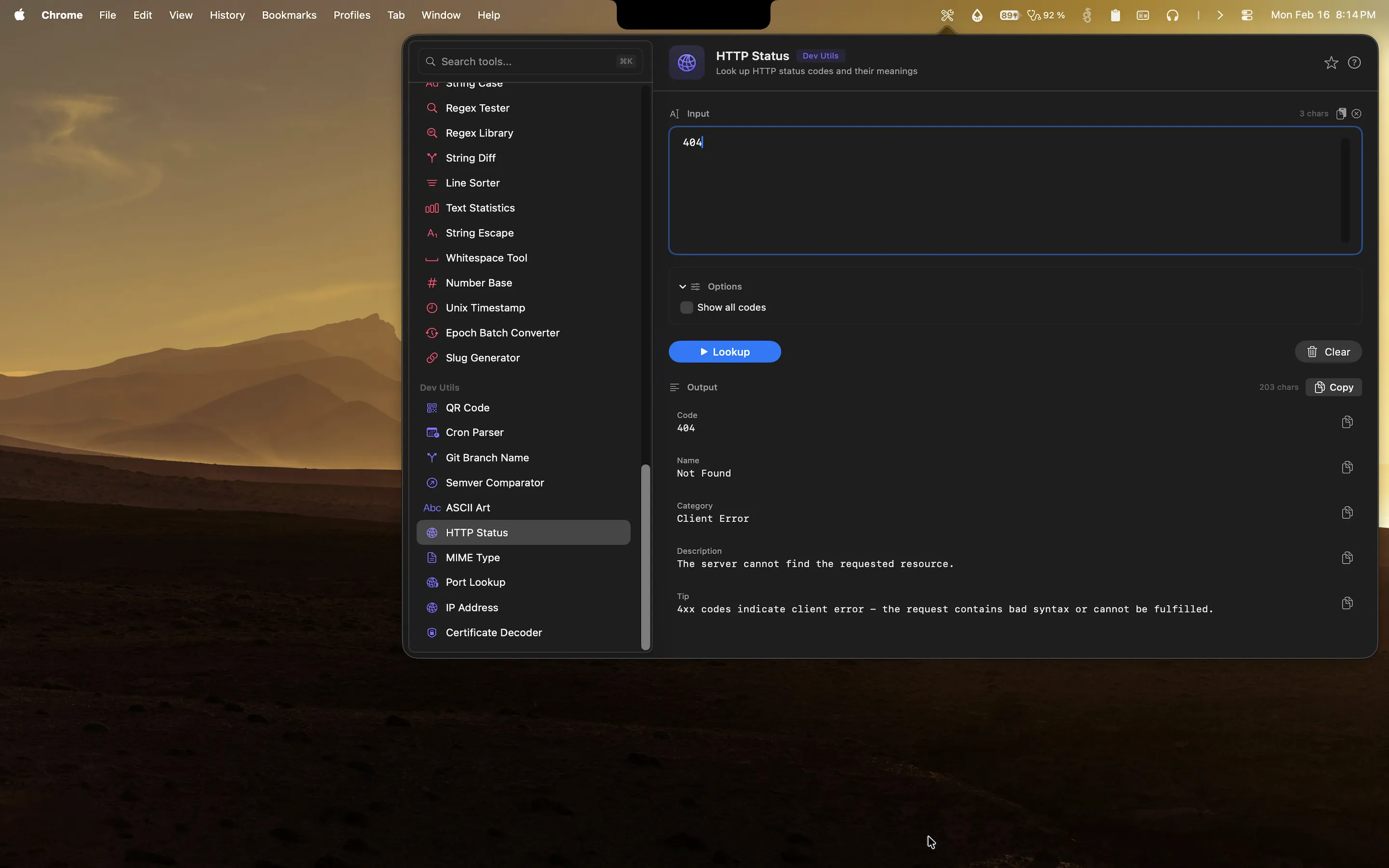
Devly has a Unix timestamp converter that handles both seconds and milliseconds epoch values. Paste the timestamp, and it outputs the corresponding UTC datetime and your local system time. The auto-detection of seconds versus milliseconds works based on the magnitude of the value: a 10-digit number is seconds, a 13-digit number is milliseconds. No configuration required.
The output shows both the UTC time and your local time simultaneously, so you can see the absolute time and the local equivalent in the same view. This matters when you are debugging something that happened at a specific local time and you need to correlate it with a UTC timestamp in a log.
Converting dates back to timestamps
The converter also works in reverse. Type a date and time and Devly outputs the corresponding Unix timestamp. This is useful when you need to construct an API request with a specific time range: you need the epoch value for "March 15, 2026 at midnight UTC" and you do not want to do that calculation manually. It is also useful when setting a cache TTL as an absolute timestamp, or when building a query that filters records by a date range using integer timestamps.
Epoch batch converter
If you have multiple timestamps to convert, Devly's batch epoch converter processes a list at once. Paste a column of timestamps and get a column of corresponding dates. This is particularly useful when analyzing log data where you have exported a set of events with epoch timestamps and need to understand the time distribution. Instead of converting them one by one, you convert the whole set in a single operation.
Stop doing epoch math manually
Devly's timestamp converter is always in your menu bar. Plus 50+ other developer tools. One-time $4.99.
Context: timestamps in the broader developer workflow
Timestamp conversion is one of those micro-tasks that happens dozens of times a week but never feels worth building a dedicated setup for. The solution is usually a quick web search or typing new Date(timestamp) into a browser console. Both work. But Devly makes it faster than either, and faster means you stay in flow rather than switching context.
It is already open in the menu bar. The tool is one search away, the result is in your clipboard in a few seconds, and you are back in your editor. Compare that to opening a browser tab, typing "unix timestamp converter", finding a result, pasting the value, reading the output, and closing the tab. The time difference per conversion is maybe 20 seconds. That adds up to meaningful time over a week of regular use.
Other time-related tools in Devly
Devly also includes a cron expression parser. If you have a cron schedule expression and want to know what it means in plain English, and when it will next run, the cron parser explains it. Paste your cron string and get a human-readable description plus the next several execution times. This is useful when you are reviewing a scheduled job configuration and want to confirm that the schedule matches what was intended, or when you inherit a cron expression with no documentation and need to understand what it does.
Both the timestamp converter and the cron parser live in the same section of Devly, grouped with other time and date utilities. Related tools together, accessible through the same search interface, with the same keyboard shortcut to open the app. That consistency makes Devly useful rather than just a collection of features.