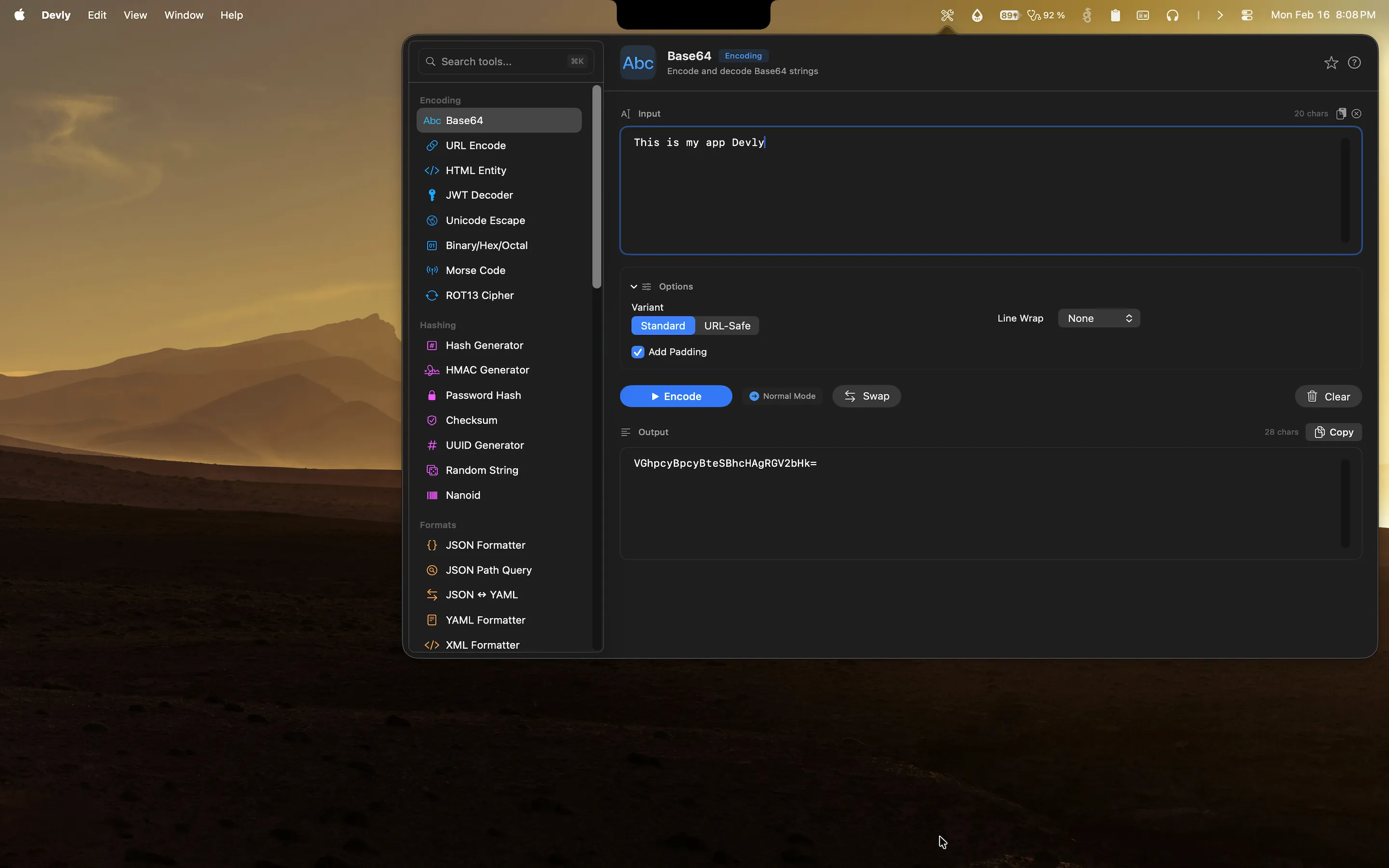
You are building an API request and you need to percent-encode a query parameter. Or you get a URL back from a server and need to decode it to understand what is actually in it. The reflex is to open a browser and find an online URL encoder. That works fine for public test data. But you are probably not always encoding test data. Sometimes it is a callback URI with an auth token in it. Sometimes it is a redirect parameter that contains a sensitive path. The habit of pasting that into a random website is one worth dropping.
A proper URL encoder for Mac runs locally, without sending anything anywhere.
When URL encoding actually matters
URL encoding comes up constantly in web and API development. Query string parameters need to be percent-encoded so that special characters do not break the URL structure. OAuth redirect URIs often contain encoded URLs themselves, creating nested encoding scenarios. Webhook payload URLs, redirect targets passed as parameters, and search query strings all require careful encoding to work correctly.
The edge cases are where things get interesting. The difference between + and %20 for spaces matters depending on whether you are encoding a query string or a path component. Characters like &, =, and # have structural meaning in URLs, so encoding them versus leaving them literal changes what the URL parser sees. Getting it wrong means broken requests, failed redirects, or subtle security issues in cases where the URL is used in authentication flows.
What developers usually do (and why it is annoying)
Most developers either search for an online encoder, try to remember the percent-encoding for each character manually, or write a one-liner in a REPL to do it. None of these are great. The online tool is a context switch that pulls you away from your editor. The manual approach is error-prone, especially for multi-byte UTF-8 characters. The REPL approach works but requires spinning up an environment.
What you actually want is the same thing you want for all of these micro-tasks: instant access without leaving your current context.
How Devly handles URL encoding on Mac
Devly has a dedicated URL encoder and decoder that lives in your macOS menu bar. Press Option+Command+D to open it, search for "URL encoder," paste your input, and process with Command+Return. You get the output instantly. Swap from encoding to decoding with one click, and copy the result with Command+Shift+C.
Everything happens on-device. Devly makes no network requests. Your URL strings, including any tokens or sensitive parameters they contain, never leave your Mac.
URL slug generator
Devly also includes a URL slug generator. Paste any string, including titles with spaces, punctuation, and mixed case, and it produces a clean, lowercase, hyphen-separated slug. Useful when you are building CMSs, blog platforms, or any system where URLs are generated programmatically from user-supplied content. No more manually lowercasing and replacing spaces.
Works with full URLs and individual components
Whether you want to encode just the value of a single query parameter, or decode a complete URL to inspect all of its components, Devly handles it. Paste a full URL with multiple encoded parameters and decode the whole thing to read it clearly. Paste a single value and encode it to use in a request. Both workflows are equally fast.
URL encoding in Devly, always in your menu bar
Encode, decode, and generate slugs natively on your Mac. One-time $4.99, no accounts, fully offline.
Part of the broader encoding toolkit
URL encoding sits in Devly's Encoding and Decoding category alongside Base64 encoding and decoding, HTML entity encode/decode, Unicode escape/unescape, binary and hex encoding, Morse code, and ROT13. If your work involves any kind of data transformation at the character or byte level, you have all the tools in one place.
The consistency of the interface matters here. Every encoding tool in Devly works the same way: paste input, process, copy output. Swap direction with one click. The muscle memory you build for one tool transfers to all of them.
The keyboard-first approach
One thing that makes Devly different from web tools is that it is designed for keyboard use from the start. Press Option+Command+D to summon it from any application. Command+K to search for the tool you want. Command+Return to process. Command+Shift+C to copy the output. You do not need to touch the mouse at any point in the workflow. For tasks you do dozens of times a day, that kind of frictionless access genuinely saves time.